I’ve spent years fixing images that looked beyond saving.
You know that feeling when you find the perfect photo but it’s too small or blurry to use? That’s the problem I solve almost daily at gfxpixelment.
Low resolution ruins projects. It makes your work look cheap even when everything else is perfect.
Here’s the thing: most software just makes your blurry image bigger and blurrier. That’s not fixing anything. That’s making it worse.
I’ve tested dozens of tools that claim they can restore pixel quality. Some actually work. Most don’t.
This guide covers the software that genuinely improves image quality. Not the ones that just upscale and hope for the best. The ones that use real techniques to bring back detail and sharpness.
We test these tools on actual projects at gfxpixelment. We know which ones deliver and which ones waste your time.
You’ll learn which AI tools actually work, which built-in features are worth using, and how to match the right solution to your specific needs.
No magic promises. Just software that does what it says it will do.
The Core Challenge: Understanding Why Pixel Quality Degrades
You’ve seen it happen.
You find the perfect image online. Download it. Try to blow it up for your project. And suddenly it looks like garbage.
Blurry edges. Blocky colors. That pixelated mess that screams amateur hour.
Here’s what’s actually going on.
Raster images work with a fixed grid of pixels. Think of it like a mosaic made of tiny tiles. When you zoom in or stretch that mosaic bigger, you’re not adding more tiles. You’re just making the existing ones larger and more obvious.
Vector graphics don’t have this problem because they use mathematical formulas instead of pixels. But most photos and screenshots you work with? Those are raster files.
So what kills your image quality?
The biggest culprit is upscaling from a small source. A 500×500 pixel image doesn’t magically contain the detail needed for a 2000×2000 print. The information just ISN’T THERE.
Then there’s compression. JPEG files especially will show artifacts (those weird blocky patterns) when you’ve saved them too many times or at too low a quality setting. According to research from the Image Processing Lab at USC, each JPEG save can degrade quality by 5-10% depending on compression levels.
Camera shake causes motion blur that no amount of stretching will fix.
But here’s where things get interesting.
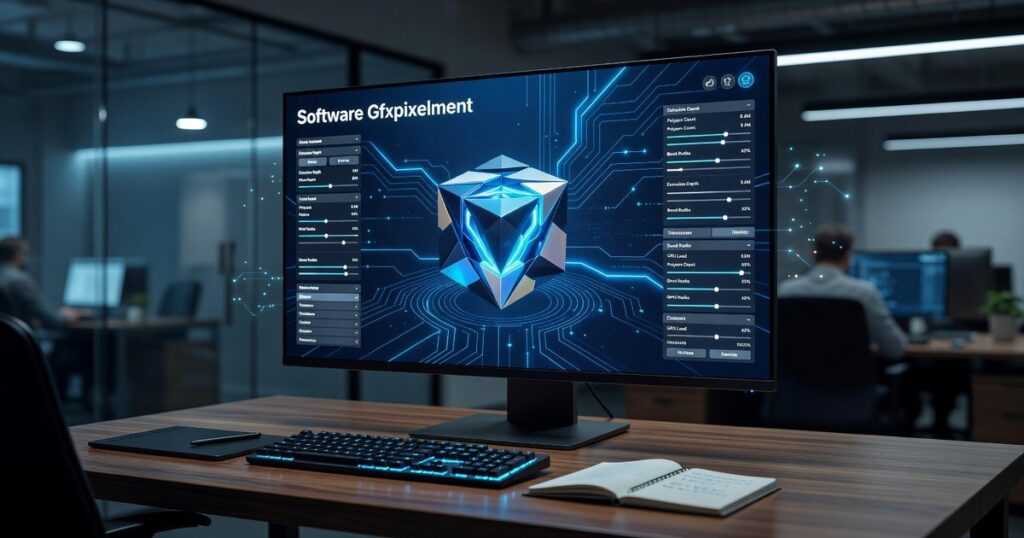
Modern tools like Gfxpixelment don’t just enlarge your images. They use AI algorithms trained on millions of photos to PREDICT what the missing details should look like. They analyze patterns, reduce noise, and sharpen edges based on what similar high-quality images contain. Harnessing the power of advanced AI, Gfxpixelment not only enhances image resolution but also intelligently reconstructs missing details, ensuring your gaming visuals achieve an unparalleled level of clarity and vibrancy.
It’s not magic. It’s math making educated guesses.
And honestly? The results can be pretty convincing.
Top Tier AI-Powered Software for Pixel Perfection
You’ve got a blurry photo you need to save.
Maybe it’s from an old family album. Or a client sent you a low-res file and expects print-quality results by Friday.
I’ve been there more times than I can count.
The good news? AI-powered tools have gotten really good at fixing images that used to be unsalvageable. But here’s where people get stuck. They don’t know which software actually works versus which ones just make big promises.
Let me walk you through the three tools I actually use.
Topaz Photo AI sits at the top for a reason. Photographers and designers in Jacksonville and beyond treat it like the gold standard. It combines three separate AI engines into one workflow: Gigapixel for upscaling, DeNoise AI for cleaning up grainy shots, and Sharpen AI for fixing blur.
I use it mostly for photo restoration projects and when I need to prep images for large-format printing. The results hold up even when you’re printing at 40×60 inches (which is when most software falls apart).
Now, some people argue that standalone tools are overkill if you already pay for Adobe Creative Cloud.
Fair point.
Adobe Photoshop’s Neural Filters pack serious AI features right into the editor you probably already use. Super Zoom handles intelligent upscaling. JPEG Artifacts Removal cleans up those blocky compression issues. The Photo Restoration filter can even fix old damaged prints.
If you’re already working in Photoshop daily, you don’t need to jump between applications. Everything stays in one place.
But what if you’re not dropping $55 a month on Adobe?
That’s where Upscayl comes in. It’s open-source and completely free. The interface is dead simple. You drag in your image, pick from community-developed AI models, and let it run. I recommend it to students and hobbyists all the time through gfxpixelment.
It won’t match Topaz for professional work. But for quick upscaling of digital art or personal photos? It gets the job done without costing you anything.
Pick based on what you actually need, not what sounds impressive.
Enhancing Pixels Within Your Existing Design Workflow
I still remember the panic I felt when a client asked me to blow up a logo I’d designed at 500px to work on a billboard.
My first instinct was to search for some fancy AI tool. But then I realized something. The what are graphic design software Gfxpixelment I already had could handle this if I just knew the right techniques.
You don’t always need a new tool. Sometimes you just need to use what you have better.
Resampling Algorithms That Actually Work
Most designers resize images without thinking about the algorithm doing the work. I did this for years.
Here’s what changed for me.
When you’re making an image bigger, Bicubic Smoother gives you cleaner results. It softens the interpolation so you don’t get those harsh pixelated edges.
Going smaller? Bicubic Sharper keeps details crisp during reduction.
But the real game changer is Preserve Details 2.0 in Photoshop (and similar features in other software gfxpixelment). I tested this against standard bicubic on a dozen projects. The difference was obvious. It uses pattern recognition to maintain edge quality when you upscale. With the latest Tech Updates Gfxpixelment showcasing advanced features like Preserve Details 2.0, it’s clear that the integration of pattern recognition in upscaling technology is revolutionizing how we enhance image quality in gaming graphics.
Some designers say these algorithms are all the same. That you can just fix everything with sharpening later.
They’re wrong.
The Right Way to Sharpen
I learned this the hard way after delivering a project with visible halos around every edge. The client wasn’t happy.
Unsharp Mask and Smart Sharpen are powerful. But only if you use them right.
Here’s my approach now. I always work on a separate layer. Always. That way I can dial back the effect or mask out areas that don’t need it.
Start subtle. You can always add more sharpening but you can’t undo that crunchy over-sharpened look once you’ve flattened your file.
Smart Sharpen gives you more control over shadows and highlights separately. I use it when I need precision. Unsharp Mask is faster for quick adjustments.
The mask part matters too. Not every part of your image needs the same treatment. Sharpen the important details and leave softer areas alone.
Practical Guide: Which Pixel Enhancement Tool Should You Choose?
You’ve seen the options. Now you need to pick one.
Most comparison articles stop right here. They dump a bunch of features on you and say “good luck.” But that doesn’t help when you’re staring at your screen wondering which tool actually fits what you do.
I’m going to make this simple.
If you’re a professional photographer who needs flawless prints, go with Topaz Photo AI. It has separate models for noise reduction, sharpness, and facial recovery. That matters when clients are paying for perfection and you can’t afford soft details at 24×36 inches.
If you’re a graphic designer or retoucher who lives in Adobe, just use Photoshop. The Neural Filters and Super Resolution are already there. You don’t need another app cluttering your workflow. (Plus you’re already paying for Creative Cloud anyway.)
If you’re restoring old family photos, it depends on the damage. Topaz handles grain and blur better. Photoshop’s Neural Filters work wonders on scratches and color fading. Budget matters here too. If you already own Photoshop, start there.
Here’s something most reviews won’t tell you.
If you’re an animator or digital artist upscaling artwork, try Upscayl first. It’s free and trained specifically on digital art. Not photographs. That’s a big difference when you’re working with clean lines and flat colors instead of natural textures.
If you just need quick clarity boosts, stop overthinking it. Your current editor probably has decent sharpening and resampling tools. I see people buying expensive software gfxpixelment when their existing setup would work fine for minor adjustments.
The truth? Most people don’t need the most powerful tool. They need the right tool for their actual work.
Want more guidance on choosing the right Tech Updates Gfxpixelment for your specific projects? Start with what you already own and upgrade only when you hit real limitations. When considering your next upgrade, it’s essential to ask yourself, “What Are Graphic Design Software Gfxpixelment?” to ensure that your investments align perfectly with your creative needs and limitations.
Pro tip: Download free trials before buying anything. Test them on your actual files, not sample images.
Your Path to Crystal-Clear Imagery
You now know the software and techniques that actually work for enhancing pixel quality.
Blurry images don’t have to be a dead end anymore.
I started gfxpixelment because I was tired of watching creators struggle with low-resolution files. You deserve tools that solve real problems.
AI-powered apps can rescue your visuals in minutes. Your current design software probably has features you haven’t tapped into yet.
Both paths work. It depends on your workflow and what you’re trying to fix.
Here’s what I want you to do: Download a free trial of one of the tools I recommended. Or open your current software and experiment with those advanced settings.
You’ll see the difference immediately.
The images you thought were unusable? They’re not. You just needed the right approach.
Stop settling for pixelated visuals. Test these solutions and watch your work transform.

 Ask Zoranna Havendell how they got into emerging technology insights and you'll probably get a longer answer than you expected. The short version: Zoranna started doing it, got genuinely hooked, and at some point realized they had accumulated enough hard-won knowledge that it would be a waste not to share it. So they started writing.
What makes Zoranna worth reading is that they skips the obvious stuff. Nobody needs another surface-level take on Emerging Technology Insights, Graphic Design Tools and Techniques, Software Development Trends. What readers actually want is the nuance — the part that only becomes clear after you've made a few mistakes and figured out why. That's the territory Zoranna operates in. The writing is direct, occasionally blunt, and always built around what's actually true rather than what sounds good in an article. They has little patience for filler, which means they's pieces tend to be denser with real information than the average post on the same subject.
Zoranna doesn't write to impress anyone. They writes because they has things to say that they genuinely thinks people should hear. That motivation — basic as it sounds — produces something noticeably different from content written for clicks or word count. Readers pick up on it. The comments on Zoranna's work tend to reflect that.
Ask Zoranna Havendell how they got into emerging technology insights and you'll probably get a longer answer than you expected. The short version: Zoranna started doing it, got genuinely hooked, and at some point realized they had accumulated enough hard-won knowledge that it would be a waste not to share it. So they started writing.
What makes Zoranna worth reading is that they skips the obvious stuff. Nobody needs another surface-level take on Emerging Technology Insights, Graphic Design Tools and Techniques, Software Development Trends. What readers actually want is the nuance — the part that only becomes clear after you've made a few mistakes and figured out why. That's the territory Zoranna operates in. The writing is direct, occasionally blunt, and always built around what's actually true rather than what sounds good in an article. They has little patience for filler, which means they's pieces tend to be denser with real information than the average post on the same subject.
Zoranna doesn't write to impress anyone. They writes because they has things to say that they genuinely thinks people should hear. That motivation — basic as it sounds — produces something noticeably different from content written for clicks or word count. Readers pick up on it. The comments on Zoranna's work tend to reflect that.