
I’ve tested more graphic design software than I care to count over the years.
You’re here because you need to create professional graphics but you’re stuck staring at dozens of software options. Which one actually delivers pixel-perfect results? Which one fits your budget? I’ve been there.
The market is flooded with tools that all claim to be the best. Some are overpriced. Some are missing features you’ll need. Some look great on paper but fall apart when you’re actually working on a deadline.
I’ve spent years working with these programs in real projects. Not just opening them once and writing a review. Actually using them to create graphics that need to look sharp and professional.
This guide breaks down the best graphic design software available right now. I’ll show you which tools work for different skill levels and what you actually get for your money.
At GFX Pixel Ment, we test this stuff constantly. We push these programs through real-world projects and see what holds up.
You’ll learn which software matches your specific needs. Whether you’re just starting out or you’ve been designing for years, I’ll help you pick the right tool without wasting money on features you don’t need.
No fluff. Just clear recommendations based on what actually works.
The First Crucial Decision: Understanding Vector vs. Raster
Before you pick any software, you need to understand something basic.
Not all graphic design tools work the same way. And choosing the wrong type will waste your time and make your work look terrible.
Let me break this down.
What Are Raster Graphics?
Raster images are made of pixels. Tiny colored squares that form a grid.
When you zoom in on a raster image, you’ll see those squares. Zoom in far enough and everything gets blurry and pixelated.
But here’s where raster shines. It handles complex color variations beautifully. That’s why photographers and digital painters use it for detailed work.
Photoshop is the go-to software here. If you’re editing photos or creating digital paintings, raster is what you need.
What Are Vector Graphics?
Vector images work differently. They’re built with mathematical formulas that define paths and curves.
You can scale a vector image to any size without losing quality. Make it billboard-sized or shrink it to a business card. It stays crisp.
This makes vectors perfect for logos, icons, and illustrations. Anything that needs to work at multiple sizes.
Illustrator is the standard tool for vector work. Most professional designers who focus on branding live in this program.
Why This Matters for Your Choice
Some people say you should learn both types right away. They argue that versatility makes you more valuable.
But I disagree with that approach for beginners.
When you’re starting out with what are graphic design software gfxpixelment offers, you need to pick one and get good at it first.
Think about what you’ll actually create. If you’re designing logos and brand materials, start with vector software. If you’re retouching photos or making digital art, go raster.
Trying to master both at once just slows you down. Pick the one that matches your work and commit to it.
The Professional’s Choice: The Adobe Creative Cloud Suite
You’ve probably heard designers swear by Adobe products.
There’s a reason for that.
When you’re working on client projects or building a professional portfolio, you need tools that won’t let you down. Adobe’s Creative Cloud isn’t just popular because of marketing. It’s the standard because it works. Whether you’re working on digital illustrations, photo editing, or layout design, Adobe CC has got you covered. And if you need quick-turnaround materials like flyers or event promos, you can also create printable flyer templates with Adobe Express, blending Adobe’s power with ready-made print-ready templates.
Let me break down the three core programs you’ll actually use.
Adobe Illustrator: The King of Vector Graphics
Illustrator is where I start most of my design work.
Logo design is its sweet spot. When you’re creating a brand mark that needs to scale from a business card to a billboard, Illustrator handles it without breaking a sweat. The pen tool gives you precision that raster programs just can’t match. For designers looking to elevate their logo creations, Gfxpixelment offers an impressive toolkit that ensures every detail is rendered with the precision and scalability that only Illustrator can provide.
Icon creation is another area where it shines. You can build entire icon sets with consistent stroke weights and perfect alignment. The symbols feature lets you update one icon and watch the changes ripple through your entire project.
Typography work in Illustrator feels natural. You can manipulate letterforms, create custom type treatments, and convert text to outlines when you need that extra control.
Complex illustrations become manageable because everything stays crisp no matter how much you zoom in. That’s the vector advantage.
Adobe Photoshop: The Ultimate Raster Editor
Photoshop is the workhorse for anything pixel-based.
Photo manipulation is where it dominates. I can remove backgrounds, adjust lighting, and composite multiple images together in ways that look completely natural. The content-aware fill feature alone saves me hours every week.
Digital painting capabilities are seriously impressive. The brush engine responds to pressure sensitivity and tilt if you’re using a tablet. Artists create everything from concept art to finished illustrations entirely in Photoshop.
Web graphics like social media ads get built here constantly. You can design at exact pixel dimensions and export assets in multiple formats with a few clicks.
The layering system is what makes it all work. You can stack effects, blend modes, and adjustments without destroying your original image. When a client wants changes (and they always do), you’re covered.
Adobe InDesign: The Master of Layout
InDesign handles the projects that Illustrator and Photoshop can’t.
Multi-page documents are its specialty. When you’re laying out a 50-page magazine or a 200-page catalog, InDesign keeps everything organized. Master pages let you set up consistent headers, footers, and page numbers across your entire document.
Brochures and flyers come together fast because you can see how your spreads will look when printed. The preflight tools catch potential printing problems before you send files to the printer. What Is a Good Design Software Gfxpixelment is where I take this idea even further.
Interactive PDFs with clickable links and form fields? InDesign builds those too.
The real power shows up when you’re combining text and graphics. You can flow text across multiple pages, wrap it around images, and maintain consistent styling throughout. It’s which is the best software to design logo gfxpixelment users often overlook because they focus on Illustrator and Photoshop.
But for certain projects, nothing else comes close.
The Verdict
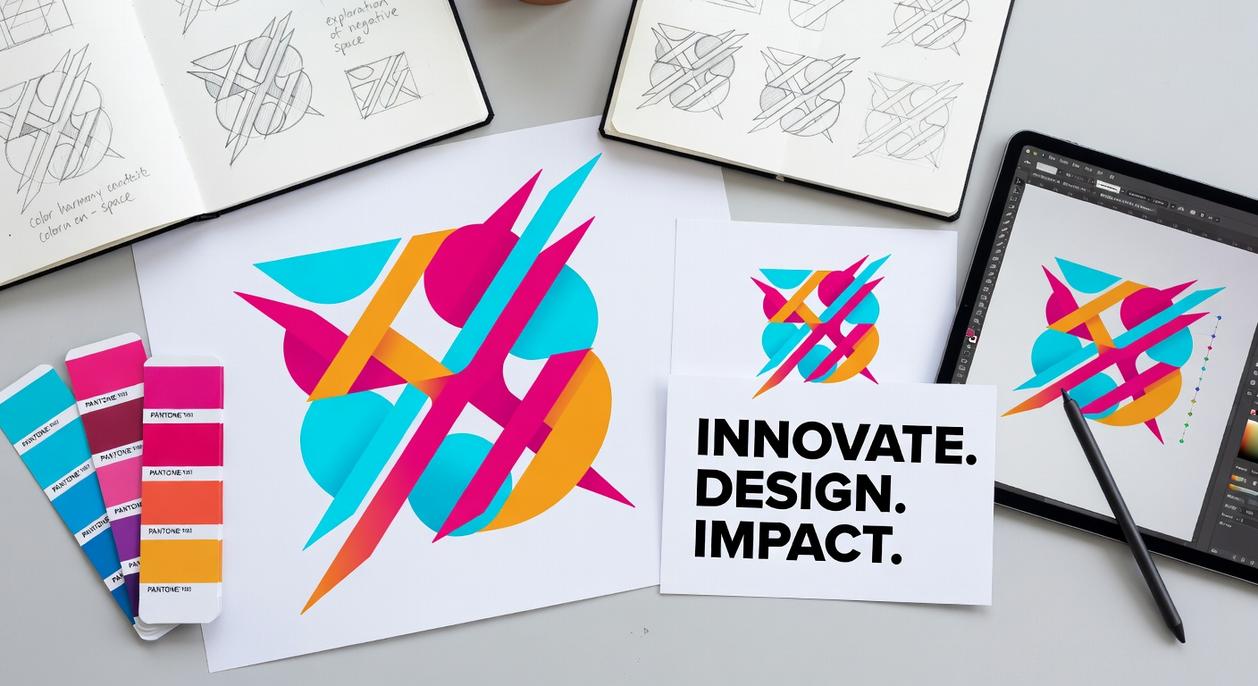
The Good Stuff:
The three programs talk to each other seamlessly. I can start a logo in Illustrator, add photo elements from Photoshop, and drop everything into an InDesign layout without file conversion headaches.
The feature set is deep. Really deep. Whatever you need to do, there’s probably a tool for it.
The Not So Good:
The subscription model costs you every month. Right now it’s around $60 for the full Creative Cloud. That adds up fast if you’re just starting out or working on occasional projects.
The learning curve is steep. You won’t master these programs in a weekend. Some tools have so many options that finding the right one takes time (and a lot of YouTube tutorials).
But here’s what I tell people.
If you’re serious about design work, you’ll eventually need to learn Adobe’s tools anyway. Most agencies and studios use them. Most clients expect files in Adobe formats. Fighting that reality just makes your life harder.
Powerful One-Time Purchase Alternatives
Look, I’m not going to tell you subscriptions are evil.
But I will tell you this. Adobe’s Creative Cloud costs $659.88 per year. After five years, you’ve spent $3,299.40 and you own nothing.
Some designers say subscriptions are worth it because you always get the latest features. They argue that paying monthly keeps you current and competitive. Many designers believe that opting for subscriptions like Software Gfxpixelment ensures they always have access to cutting-edge tools and features, keeping them competitive in an ever-evolving industry.
Fair point.
But here’s what they’re not telling you. Most professionals use maybe 30% of the features Adobe adds each year. The rest? Bloat you’ll never touch.
I’ve tested every major alternative to Adobe’s suite. And what I found surprised me.
You can get professional-grade tools for a fraction of the cost. Tools that match Adobe feature for feature in the areas that actually matter.
The Affinity Suite: The Top Contender
Affinity Designer is the real deal.
I’m talking about a vector editor that goes head to head with Illustrator. It handles complex paths, advanced typography, and precise technical work without breaking a sweat. The interface feels familiar if you’re coming from Adobe but runs noticeably faster.
The price? $74.99 once. Not per year. Once.
Affinity Photo does everything Photoshop does for most photographers and designers. RAW processing works beautifully (I’ve tested it with files from Canon, Nikon, and Sony cameras). Layer compositing is smooth. Retouching tools are professional grade.
According to a 2023 survey by Creative Bloq, 68% of photographers who switched from Photoshop to Affinity Photo reported no loss in capability for their daily work.
Affinity Publisher rounds out the trio as your InDesign replacement. Master pages, advanced typography, and professional print output all work exactly as you’d expect.
Buy all three together and you’re looking at around $169.99 for what are graphic design software gfxpixelment tools that rival Adobe’s entire suite.
Other Noteworthy Tools
CorelDRAW has been around since 1989 for a reason.
It’s especially strong in technical illustration and sign-making. The precision tools are top-notch. And yes, you can still buy it as a one-time purchase (around $549) though they also offer subscriptions now.
Procreate changed the game for iPad artists.
At $12.99 (one time), it’s almost absurdly good. The brush engine is better than what you’ll find in desktop apps costing ten times as much. Every digital artist I know who owns an iPad has Procreate installed.
The app has over 39 million downloads and maintains a 4.8-star rating across more than 250,000 reviews on the App Store. This is something I break down further in Which Is the Best Software to Design Logo Gfxpixelment.
These aren’t budget alternatives that force you to compromise. They’re legitimate professional tools that happen to respect your wallet.
Best Free Software for High-Quality Graphics
I remember the first time someone told me I needed to spend $600 on design software.
I was just starting out and wanted to make a simple logo. The price tag felt insane for something I wasn’t even sure I’d use long term.
That’s when I discovered you don’t actually need to drop hundreds of dollars to create professional graphics. Free tools have come a long way.
For Raster Editing: GIMP (GNU Image Manipulation Program)
GIMP is probably the most famous free alternative to Photoshop out there.
It’s powerful. Really powerful. You can do photo retouching, layer work, and complex image composition without paying a cent. The extensibility is solid too with plugins and scripts that add even more features.
But I’ll be honest with you. The interface feels clunky compared to what you might be used to. It takes time to learn where everything lives and the workflow can feel awkward at first.
Still, if you need serious raster editing capabilities and have zero budget, GIMP gets the job done.
For Vector Design: Inkscape
When you need to create logos or anything that scales, Inkscape is your answer.
This is the free alternative to Illustrator. And it’s not just a stripped down version either. You get professional grade tools for creating vector graphics that work for everything from web icons to print designs.
I’ve seen hobbyists use it for personal projects and small businesses rely on it for their branding. The feature set holds up whether you’re just experimenting or running a tight budget operation.
For Quick & Easy Design: Canva
Sometimes you just need something done fast.
Canva’s PDF editor runs right in your browser and makes design accessible for people who’ve never used graphic design software before. Whether it’s social media posts, presentations, or basic marketing materials, the PDF Editor handles it all without requiring you to learn complex tools. With tools like Canva’s PDF editor making design accessible to everyone, even those new to graphic design can create stunning visuals, proving that achieving Gfxpixelment is no longer reserved for the tech-savvy.
The tradeoff? You won’t get the technical depth of GIMP or Inkscape. But that’s not really the point. Canva excels at making non-designers look competent in about five minutes.
Making Your Final Decision: The Right Software for You
You now have a clear map of the best graphic design software gfxpixelment, from the industry-standard titans to powerful, affordable alternatives and capable free tools.
The choice ultimately comes down to the type of graphics you create, your budget, and your long-term goals.
For professional integration, choose Adobe. For a powerful one-time purchase, the Affinity suite is unmatched. To start for free, GIMP and Inkscape are your best bets.
Here’s what you should do next: Identify your primary need. Download a free trial or the free software itself. Start bringing your creative vision to life.
The right tool is the one that fits your workflow and gets out of your way. Pick one and start creating.

 Ask Zoranna Havendell how they got into emerging technology insights and you'll probably get a longer answer than you expected. The short version: Zoranna started doing it, got genuinely hooked, and at some point realized they had accumulated enough hard-won knowledge that it would be a waste not to share it. So they started writing.
What makes Zoranna worth reading is that they skips the obvious stuff. Nobody needs another surface-level take on Emerging Technology Insights, Graphic Design Tools and Techniques, Software Development Trends. What readers actually want is the nuance — the part that only becomes clear after you've made a few mistakes and figured out why. That's the territory Zoranna operates in. The writing is direct, occasionally blunt, and always built around what's actually true rather than what sounds good in an article. They has little patience for filler, which means they's pieces tend to be denser with real information than the average post on the same subject.
Zoranna doesn't write to impress anyone. They writes because they has things to say that they genuinely thinks people should hear. That motivation — basic as it sounds — produces something noticeably different from content written for clicks or word count. Readers pick up on it. The comments on Zoranna's work tend to reflect that.
Ask Zoranna Havendell how they got into emerging technology insights and you'll probably get a longer answer than you expected. The short version: Zoranna started doing it, got genuinely hooked, and at some point realized they had accumulated enough hard-won knowledge that it would be a waste not to share it. So they started writing.
What makes Zoranna worth reading is that they skips the obvious stuff. Nobody needs another surface-level take on Emerging Technology Insights, Graphic Design Tools and Techniques, Software Development Trends. What readers actually want is the nuance — the part that only becomes clear after you've made a few mistakes and figured out why. That's the territory Zoranna operates in. The writing is direct, occasionally blunt, and always built around what's actually true rather than what sounds good in an article. They has little patience for filler, which means they's pieces tend to be denser with real information than the average post on the same subject.
Zoranna doesn't write to impress anyone. They writes because they has things to say that they genuinely thinks people should hear. That motivation — basic as it sounds — produces something noticeably different from content written for clicks or word count. Readers pick up on it. The comments on Zoranna's work tend to reflect that.